


Creating a catalogue is a good first step. But a catalogue by itself is still internal work.
Your customer does not get value from the catalogue sitting inside your dashboard. They get value when you turn it into an output they can open, share, browse, forward, or respond to.
In Photoship, the catalogue is the middle layer:
Products → Catalogue → Output
The output is where the business value starts.
Why Catalogues Alone Feel Incomplete
A catalogue is a grouping of products. It helps you organize products for a purpose: a seasonal collection, a price list, a wholesale range, a new launch, or a customer-specific selection.
But until you create an output, the catalogue is mostly preparation.
If you created a catalogue and stopped there, you have organized your products, but you have not yet put them in front of anyone.
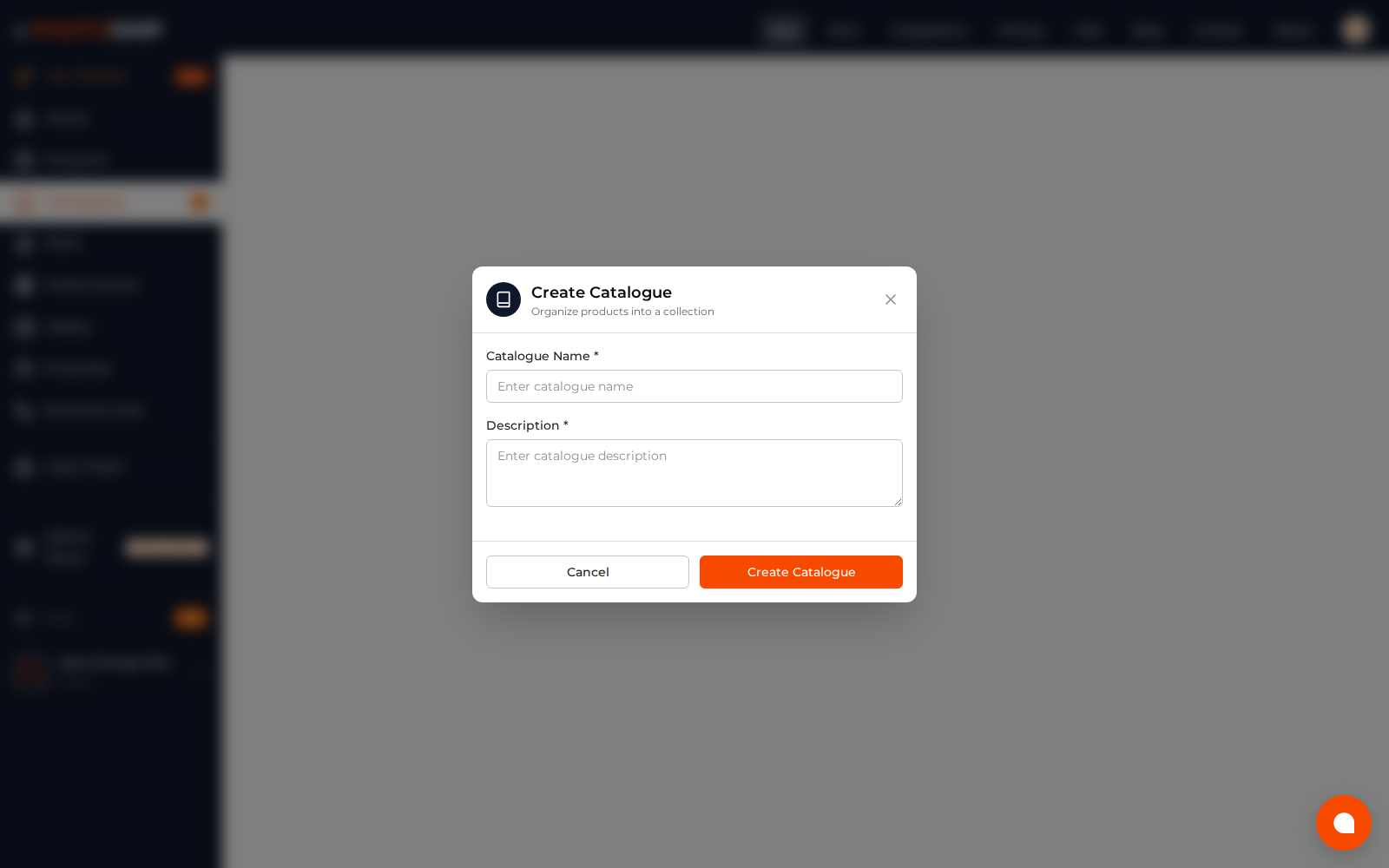
That is why many businesses feel like they “created a catalogue” but did not get anything useful from it. The next step is the important part.
Step 1: Decide Who This Catalogue Is For
Before creating an output, ask one question:
Who needs to see this catalogue?
The answer decides the format.
- A retail customer needs a clean browsing experience.
- A wholesale buyer needs a fast price list.
- A repeat customer may only need a simple link.
- A distributor may want a PDF they can forward.
- Your team may need an Excel export for offline work.
The same catalogue can support multiple outputs, but each output solves a different job.
Step 2: Create a PDF When You Need Something Forwardable
PDFs are still useful because they are easy to send anywhere.
Use a PDF when your customer expects a file:
- WhatsApp forwarding
- Email attachments
- Distributor sharing
- Printed sales material
- Offline viewing
- Price-list style communication
A PDF is a frozen snapshot. If you change product prices or descriptions later, the old PDF does not change. That is useful when you want a fixed version for a campaign, quotation, or season.
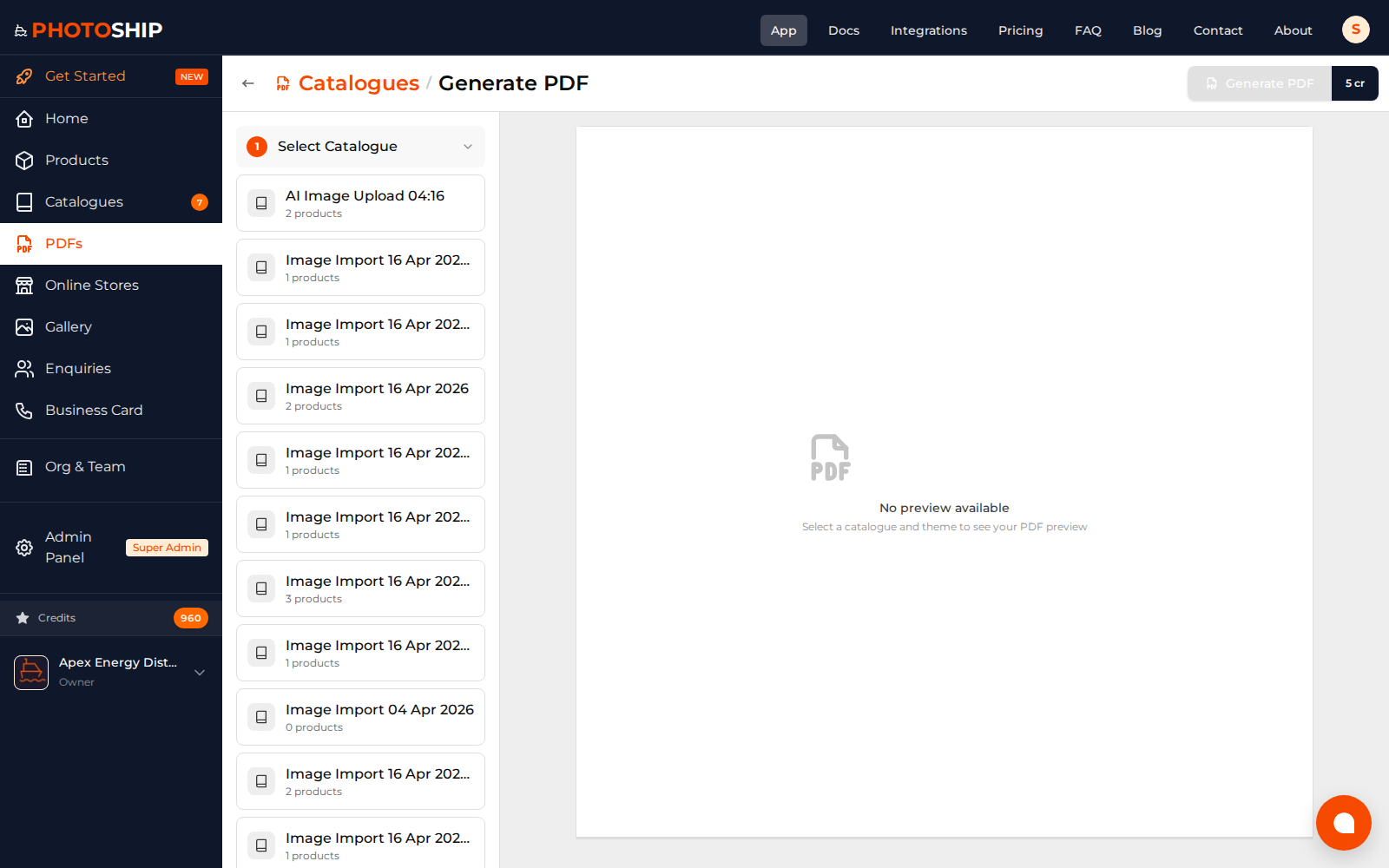
Best for: price lists, lookbooks, wholesale sheets, event catalogues, and one-time customer sends.
Step 3: Create an Online Store When You Need Live Browsing
An online store is better when customers will keep coming back to the same link.
Stores are live-synced. If you edit a product in Photoship, the store updates automatically. You do not need to export again or send a new file.
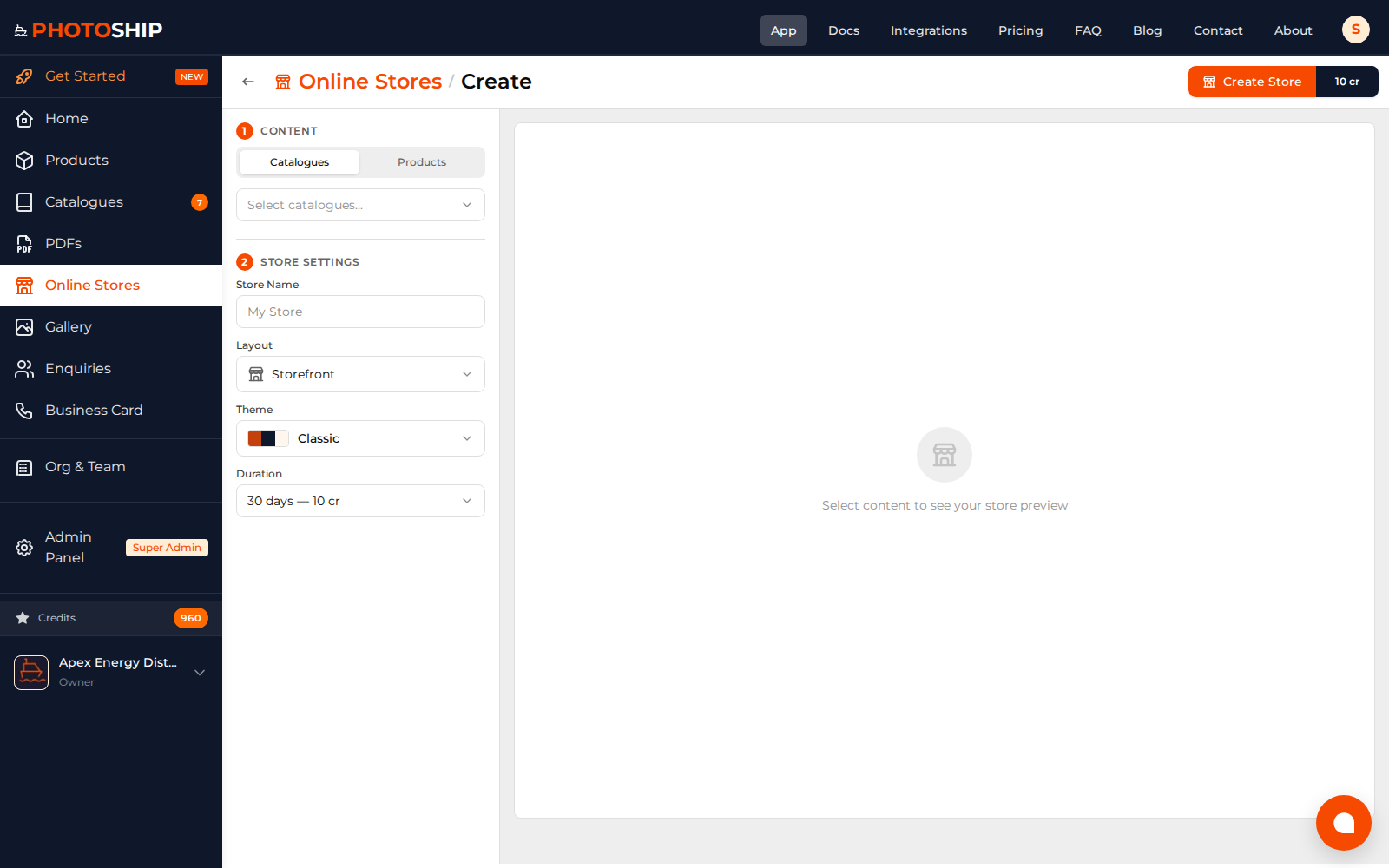
Use a store when you want:
- One public URL for many catalogues
- Mobile-friendly product browsing
- Live price and product updates
- Multiple catalogue sections
- A more professional customer experience
- A link you can put in Instagram bio, WhatsApp profile, or your website
Best for: active product ranges, wholesale ordering, D2C catalogues, dealer lists, and businesses that update products often.
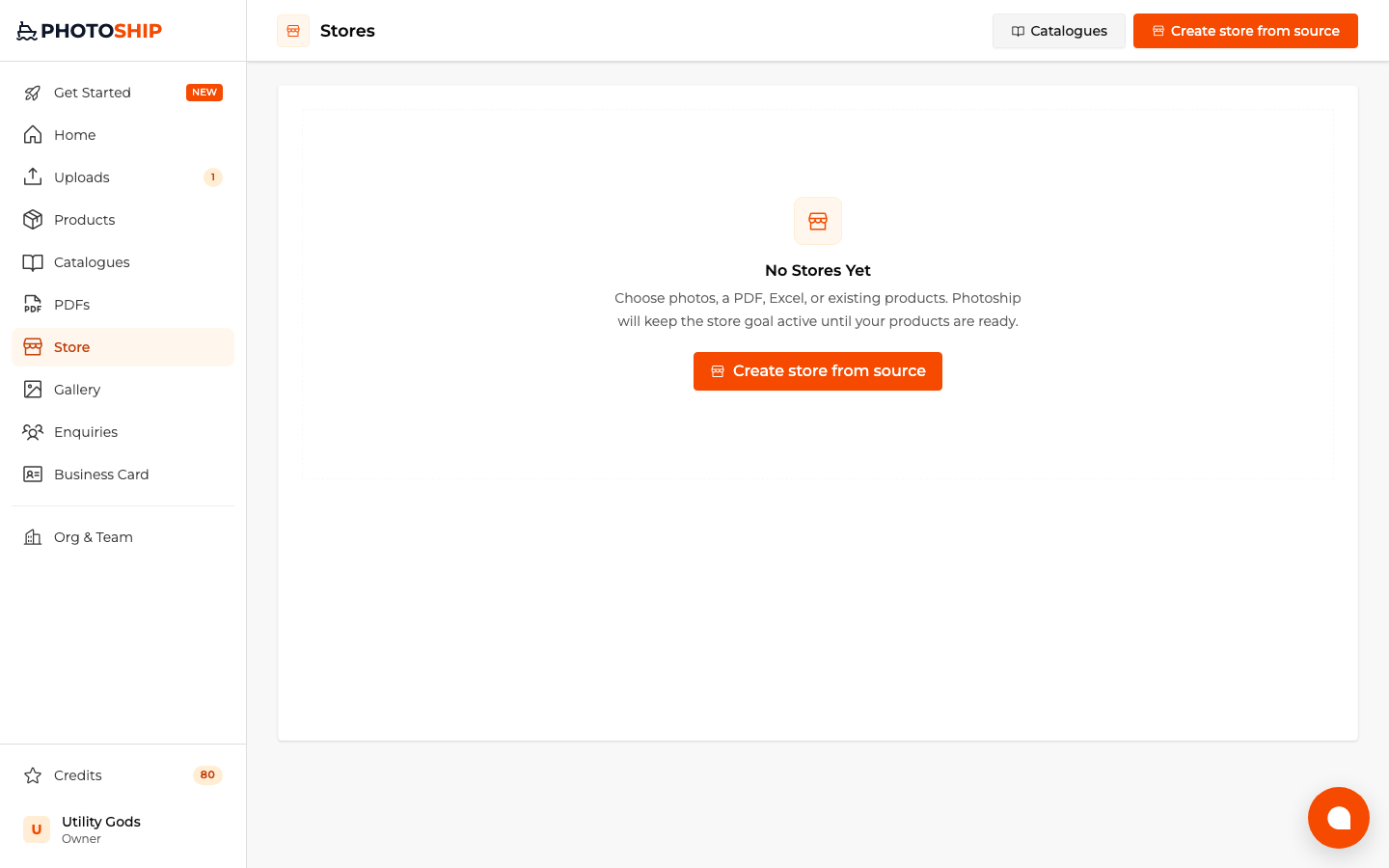
Step 4: Use Sharing for Quick Customer Links
Sometimes you do not need a full store or a PDF. You just need to show a few products quickly.
That is where sharing works well.
A share link is lightweight and live-synced. You can create it from a catalogue, a single product, or selected products. The customer opens a clean product page without needing a login.
Use sharing when:
- A customer asks for 3–10 products
- You want to send a quick curated selection
- You do not want to create a full store yet
- You need a simple link instead of a file
Best for: quick replies, customer-specific selections, and follow-ups after a call.
Step 5: Export When You Need Data, Not Presentation
PDFs, stores, and share links are for customers. Excel exports are for operations.
Use export when you need to move product data into another workflow:
- Internal review
- Team edits
- Marketplace preparation
- Supplier coordination
- Backup records
Export is not usually the final customer-facing output. It is useful when your catalogue data needs to travel into another system.
A Simple Rule
If you are unsure what to do after creating a catalogue, use this rule:
- Need to forward it? Create a PDF.
- Need a live public link? Create a store.
- Need to send a few products quickly? Create a share link.
- Need product data outside Photoship? Export it.
The catalogue is not the finish line. It is the source that powers all of these outputs.
The Best Workflow
A strong catalogue workflow usually looks like this:
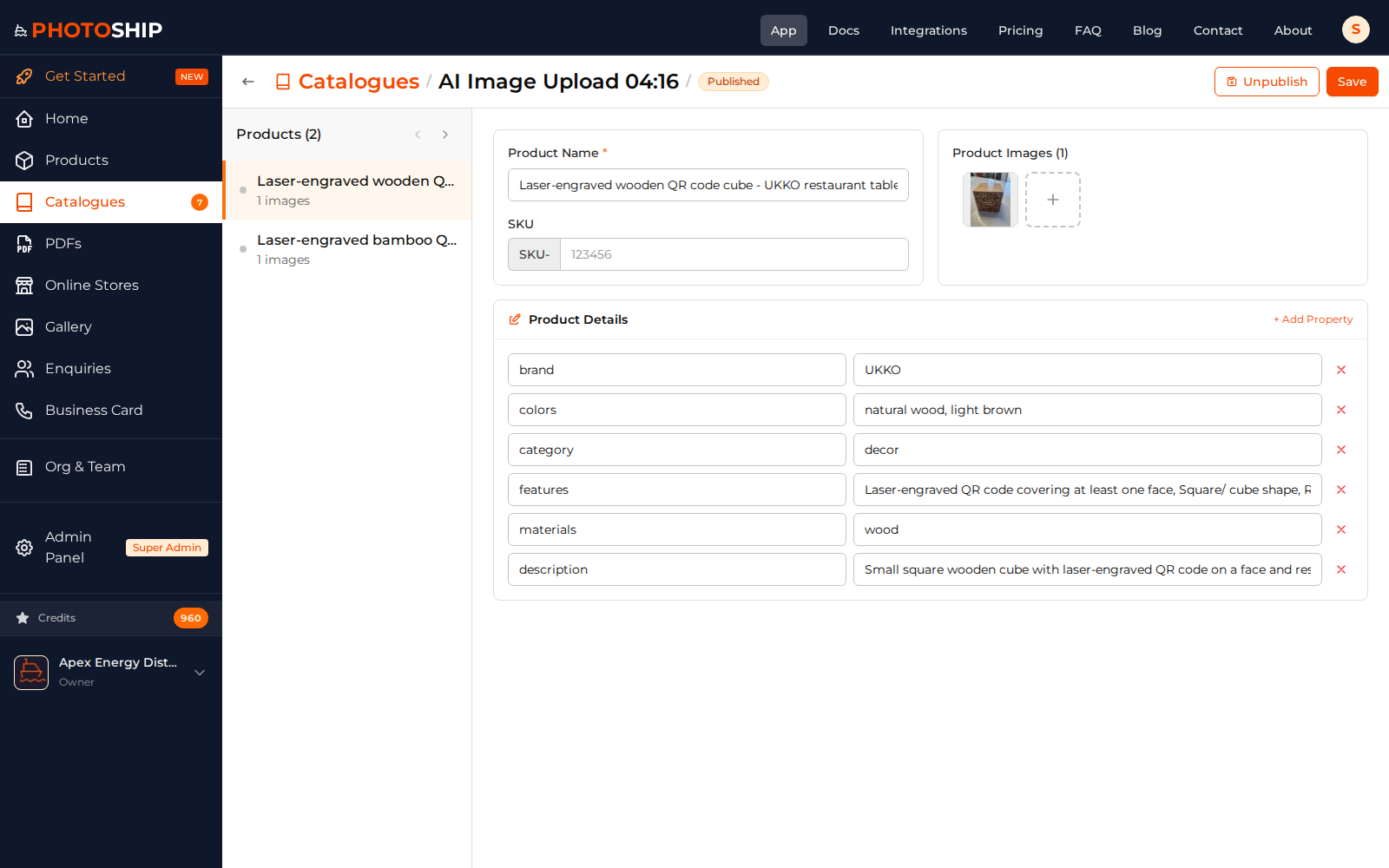
- Upload or create products.
- Group the right products into a catalogue.
- Review names, prices, images, and descriptions.
- Choose the output based on the customer need.
- Share the output.
- Update products in Photoship when things change.
For live outputs like stores and share links, updates appear automatically. For frozen outputs like PDFs and Excel files, generate a new version when you need the latest data.
Do Not Stop at “Catalogue Created”
A catalogue is valuable because it gives structure to your products. But the real value comes from distribution.
Create the catalogue, then immediately create the right output.
That is the point where your work turns into something your customers can actually use.