


Your catalogue might go to a buyer as a PDF, appear in your online Store, or arrive as a link on WhatsApp. Whichever way you send it, it should look like it came from your business.
Photoship now lets you give PDFs, Stores, and Share links their own business identity. Set the business name, logo, artwork, and contact details for the thing you are creating—not just one Organization profile used everywhere.
Keep a consistent identity across all three, or tailor each one for a different collection, trading name, or sales team.
One Familiar Editor
Open the business identity editor while preparing your PDF, Store, or Share.
You can edit your business name, email, WhatsApp or phone number, website, and address, and choose logo and cover artwork. Check the preview before committing your changes.
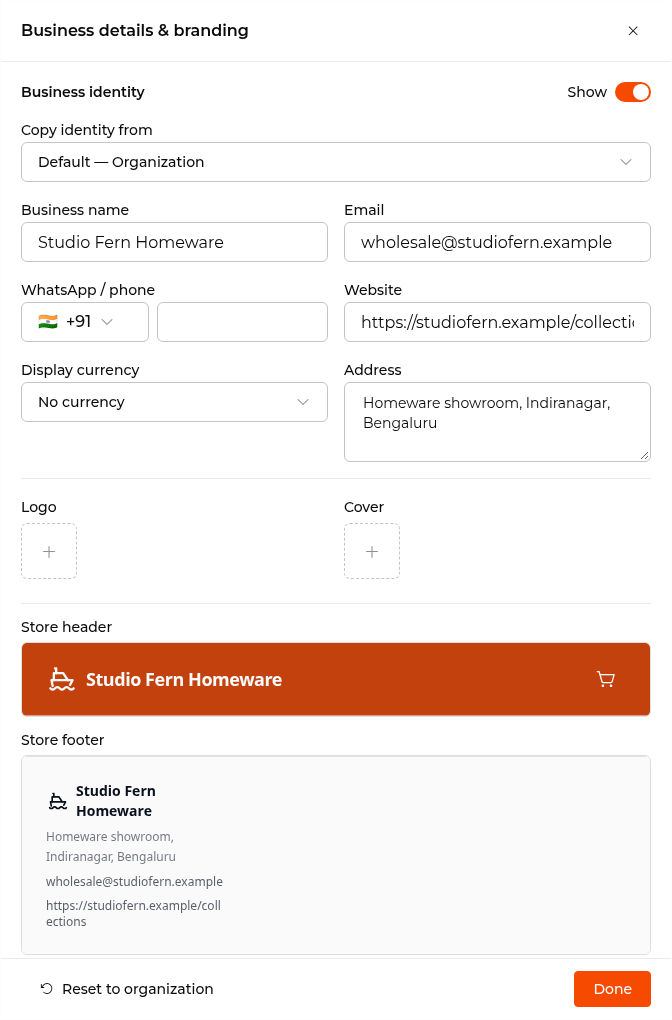
The actual Store identity editor, shown with an illustrative homeware wholesaler's identity. PDFs and Shares use the same identity-editing approach; their previews and output-specific controls differ. Display currency is a Store-only setting.
The important distinction: identity belongs to the output, not the source catalogue. You can change how a collection is presented without renaming its catalogue or changing your Organization profile.
Start With an Identity You Already Use
You do not have to re-enter the same details every time.
Start with your Organization details, or copy an identity from an existing Store or a PDF with saved business details. Then edit the copy for your new output.
For example, keep your usual logo and website but use the email address for your wholesale team. Or prepare a seasonal PDF and a matching Share link under a collection's trading name.
Copying is a starting point, not a live connection. Editing the copy does not change the Organization, Store, or PDF it came from.
PDFs: Put Your Identity on the Document
A PDF catalogue should be ready to send, with the right business details and artwork already in place.
The PDF identity editor lets you prepare those details alongside a PDF preview. Your choices are saved with the generation, so the resulting document uses that identity rather than substituting your current Organization profile later.
You can also control business text, logo visibility, and cover artwork independently. Hiding the business name and contact details does not require hiding your logo, and showing artwork is separate from including a cover page.
Select Done to keep your identity draft, then Generate or Save changes to apply it to the PDF. Closing the sheet does not generate a document.
Already have a PDF? You can edit its design for free.
Stores: Give Each Store Its Own Public Identity
Your Store can have the name, artwork, and contact details that fit the business it represents—even when its products come from catalogues you also use elsewhere.
The identity appears in the public Store presentation, including its header, footer, and contact experience. Preview it in your selected layout and theme rather than guessing how the details will look together.
When creating a Store, your identity stays in the draft until Create Store. In the existing Store's identity editor, Done saves the identity without changing its slug or rewriting your source catalogues.
This is useful when one Organization manages several collections or trading names but each Store needs a distinct customer-facing identity.
Shares: A Branded Link Without Setting Up a Store
A Share link can now carry its own business identity too. Buyers see the selected branding when browsing the shared catalogue and its product pages.
Already sent the link? Open the Share and choose Edit Business Identity. Update the details, preview the result, and select Done.
Share identity edits are free and keep the same public link and expiry date. They do not renew the Share. Creation and extensions still use the selected duration's credit price.
In the Share Create or Edit builder, identity changes remain a draft until Create Share or Update Share.
Show Only What Belongs on That Output
You do not have to display every business field everywhere. Custom fields left blank stay blank instead of being filled back in from Organization defaults.
For Stores and standalone Shares, hiding business branding does not necessarily disable WhatsApp contact: the selected identity's phone number can still be used. Leave that phone field blank too if you do not want that contact option.
PDFs have separate visibility controls for business details and artwork, so you can choose the combination that suits the document.
From a Branded PDF to Live Products
For new PDF generations, the View Online link carries the identity saved for that PDF. A buyer can move from the document to live catalogue products with the corresponding branding.
The products remain live; the linked identity stays tied to that PDF generation. Older PDF links are not automatically rebranded by this update.
Make Your Next Output Yours
Start a PDF, Store, or Share, open its business identity editor, and choose the details you want buyers to see. Reuse an existing identity or make an independent variation, check the preview, and save through that output's normal flow.
For the basics, see the guides to PDF generation, online Stores, and Share links.