


How to Add Catalogues to a Digital Business Card
Create one shareable business profile that combines contact information, social links, and selected product catalogues. Customers can save your details and continue directly to the collections you want to feature.
Watch the workflow
Open on YouTubeStep-by-step
- 1
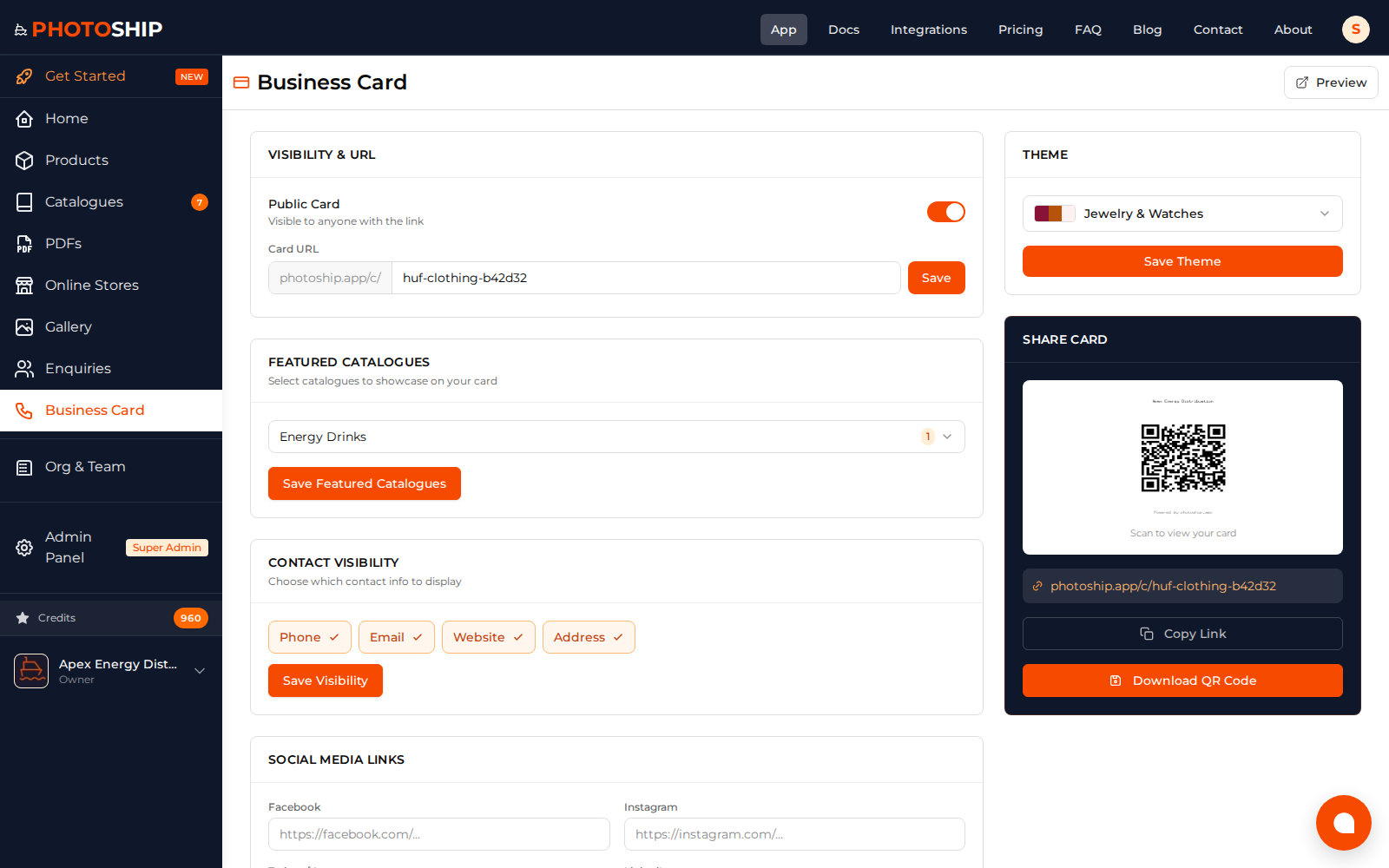
Open business-card settings
Choose the organization whose business identity and catalogues should appear on the card.
- 2
Add contact and social links
Enter the phone, email, website, WhatsApp, and social profiles customers should be able to use.
- 3
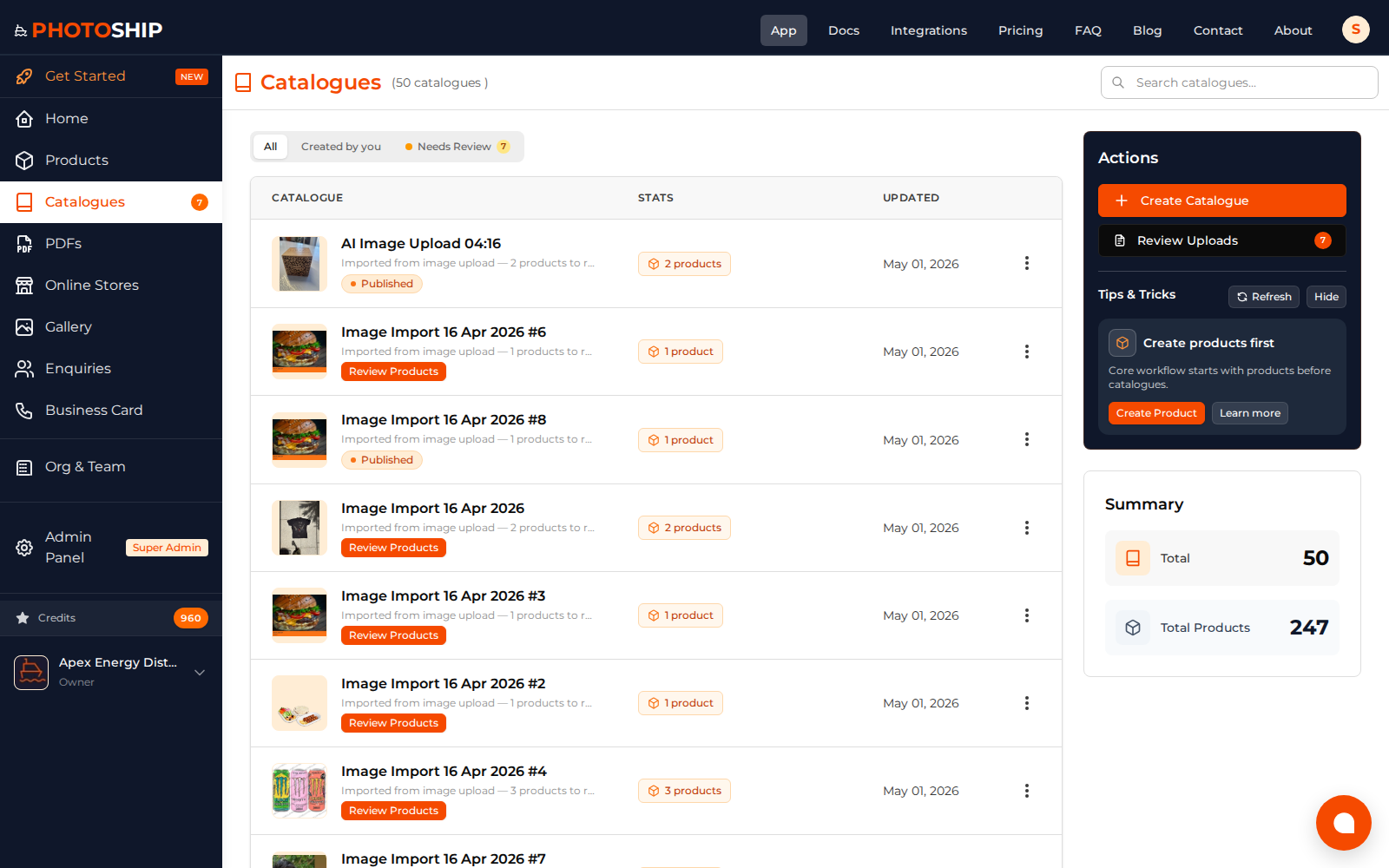
Select featured catalogues
Choose the product catalogues that should appear on the public card and hide collections that are not ready for buyers.
- 4
Preview and share
Check the public design, copy the link or QR code, and test every contact and catalogue action before distribution.
Before you publish
- Use the same business identity customers see elsewhere.
- Feature only the most useful catalogues.
- Retest links after changing domains or social handles.