


How to Turn Excel into a Product Catalogue
Import structured product data from Excel or CSV and turn it into a reusable catalogue. This is the fastest route when your names, prices, SKUs, or stock details already live in a spreadsheet.
Watch the workflow
Open on YouTubeStep-by-step
- 1
Prepare the spreadsheet
Use one header row and consistent columns for product name, price, SKU, description, and image URL. Keep one logical product or variant per row.

- 2
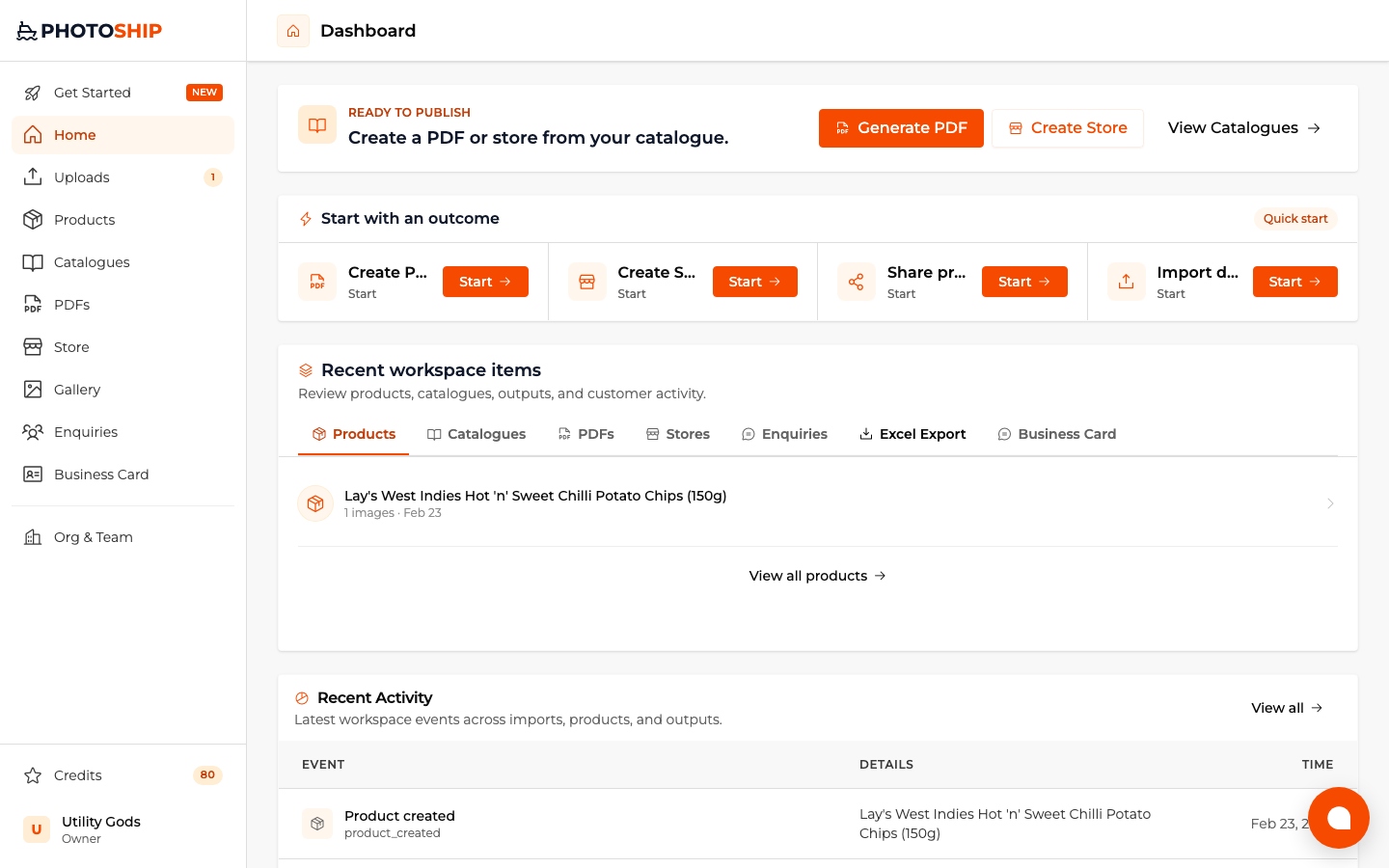
Choose your target output
Select PDF, store, share, or organize before uploading when you already know what the spreadsheet should become.
- 3
Upload Excel or CSV
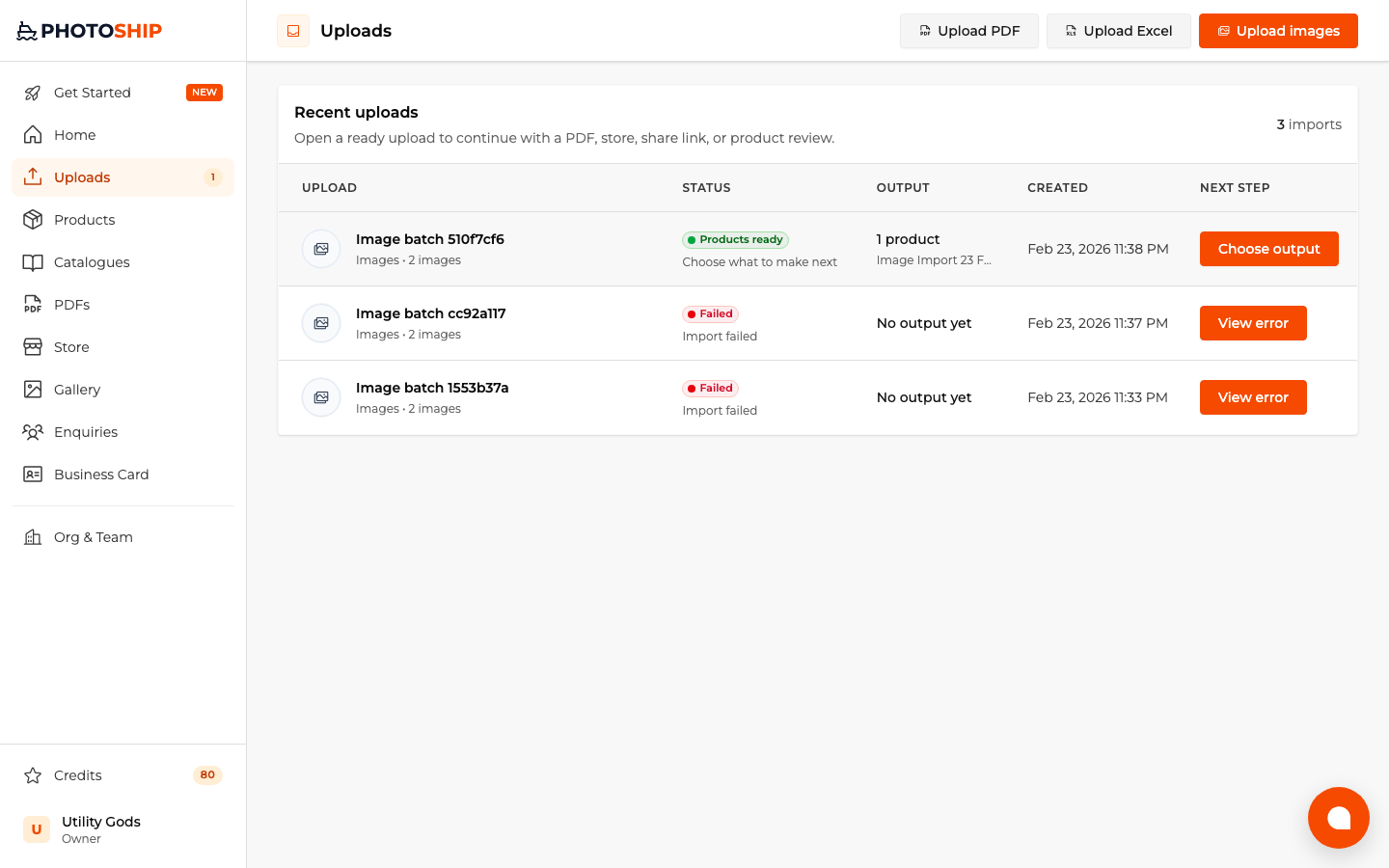
Choose the spreadsheet source, upload the file, and let Photoship map the structured columns into product data.

- 4
Review and continue
Check the imported products and follow the next action for your selected goal. The same catalogue can later power several outputs.
Before you publish
- Avoid merged cells and decorative header rows.
- Use direct image URLs when the spreadsheet contains product images.
- Keep price columns numeric and store currency separately.