


How to Set Up WhatsApp Ordering for a Product Catalogue
Let customers browse products, build a cart, and send an itemized enquiry directly to your WhatsApp number. Photoship prepares the product list and total so buyers do not need a separate checkout account.
Watch the workflow
Open on YouTubeStep-by-step
- 1
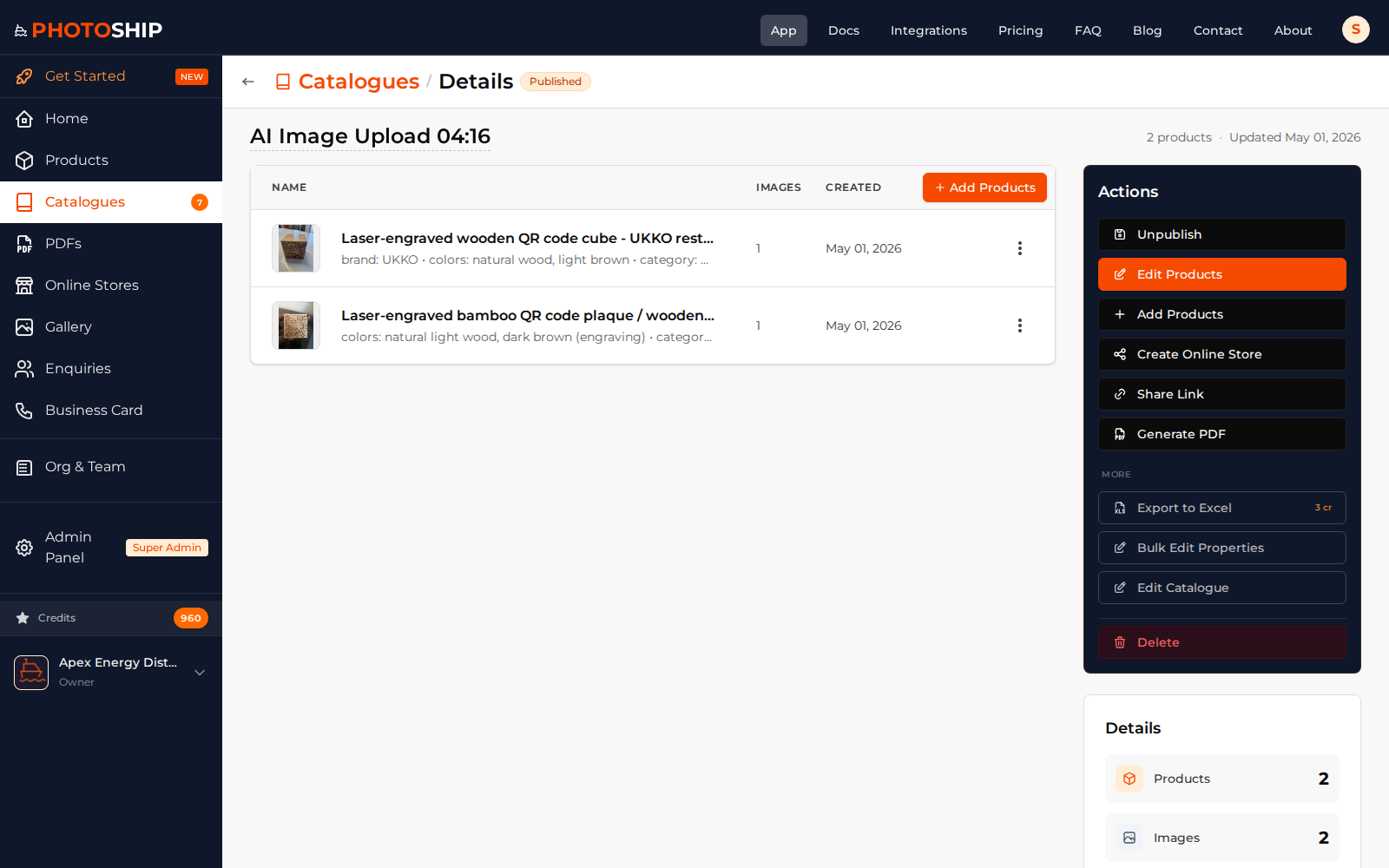
Prepare products and prices
Make sure the customer-facing products have clear names, current prices, and suitable images before enabling ordering.
- 2
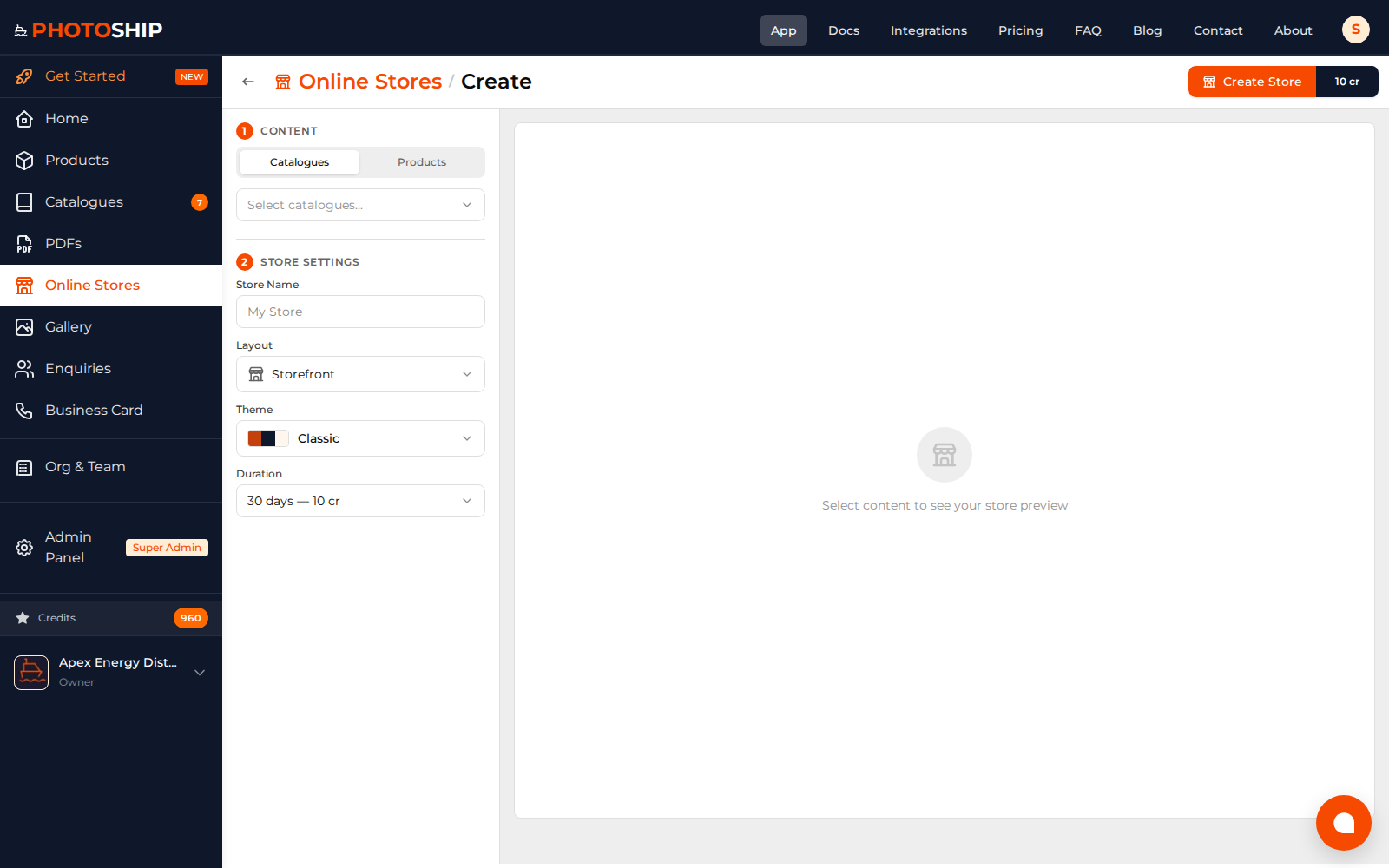
Add the WhatsApp number
Open the store or sharing settings and enter the business number customers should contact, including the correct country code.
- 3
Enable cart and enquiry actions
Choose the buyer actions that let customers add products and continue to WhatsApp with an itemized message.
- 4
Test the customer journey
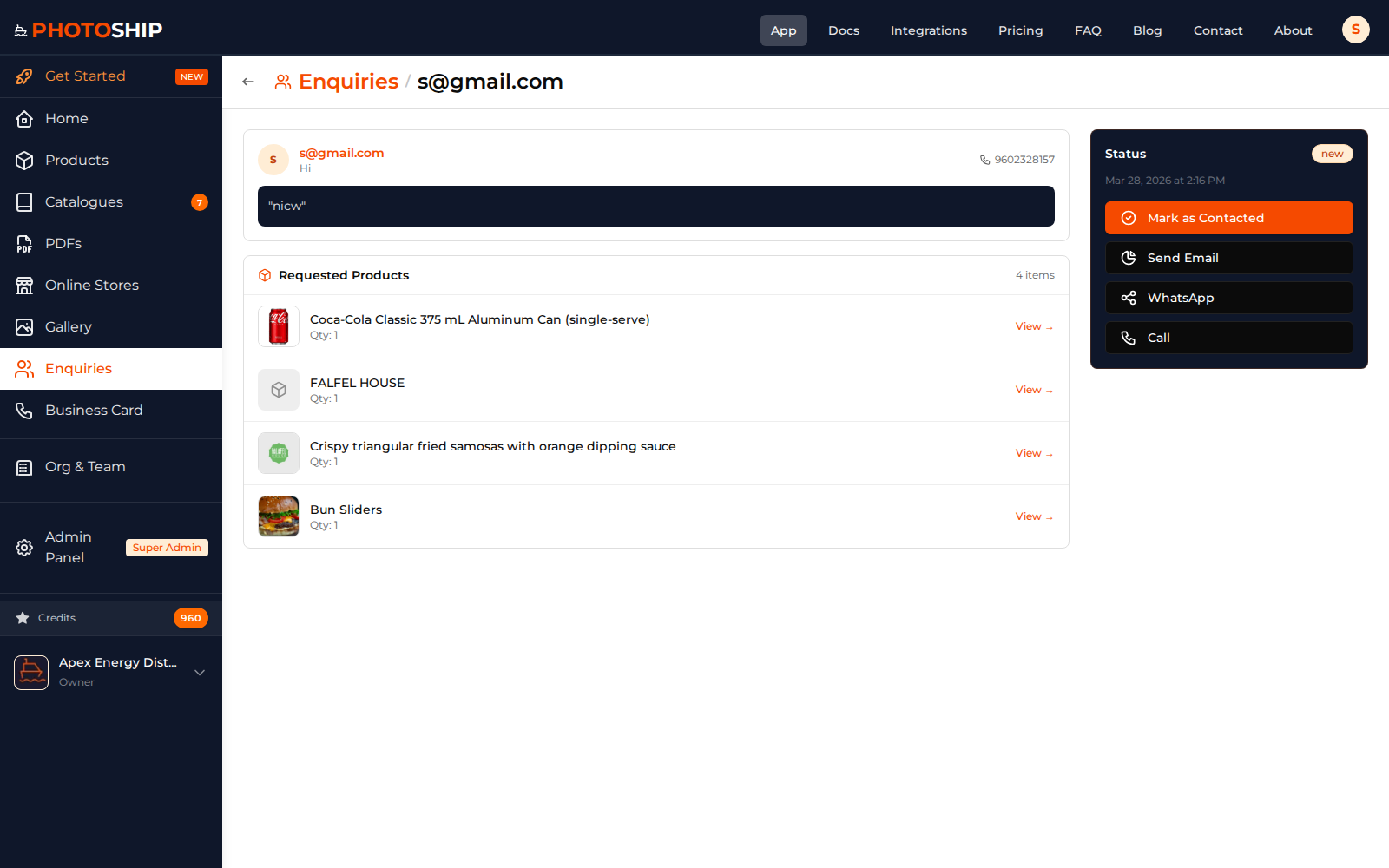
Open the public link on a phone, add several products, and confirm the generated WhatsApp message reaches the intended business account.
Before you publish
- Use an active WhatsApp Business number.
- State fulfilment and payment terms in your customer message.
- Treat WhatsApp submissions as enquiries until you confirm the order.