


How to Make a PDF Catalogue from Product Photos
Turn product images into a polished PDF catalogue without laying out every page manually. Upload the photos, review the product information, choose a PDF design, and generate a file ready for WhatsApp, email, or printing.
Watch the workflow
Open on YouTubeStep-by-step
- 1
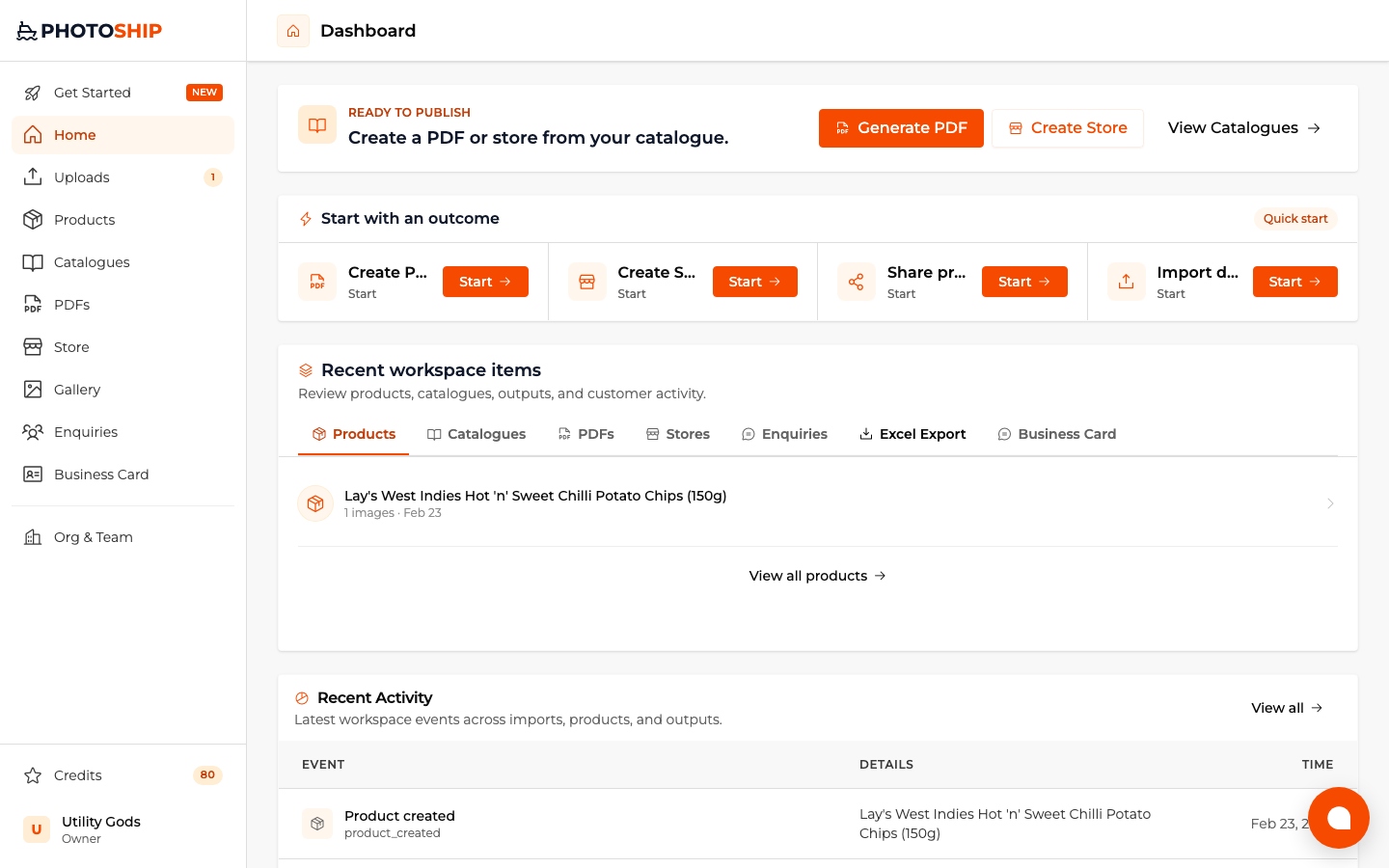
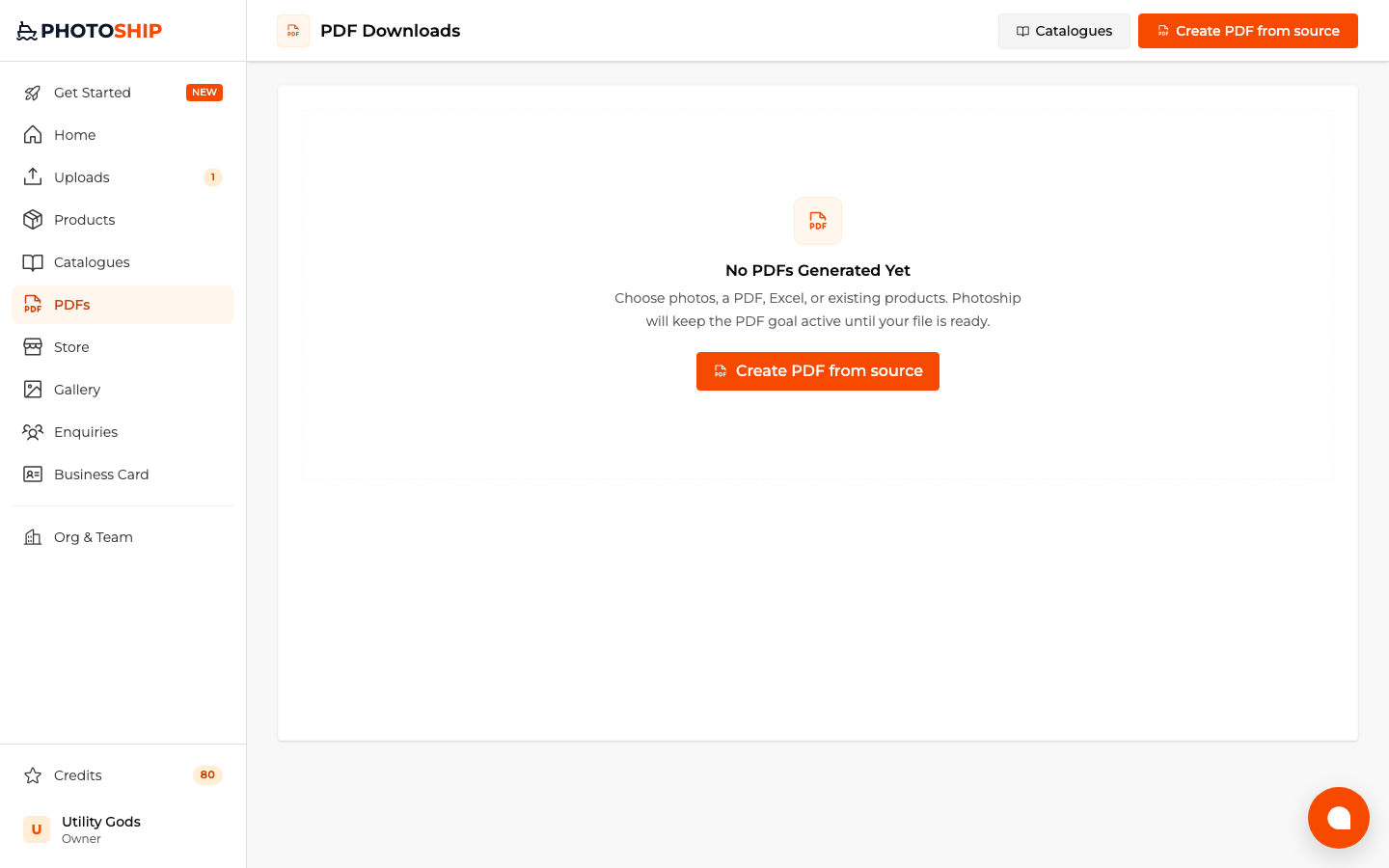
Choose Create PDF
Begin with the PDF result so Photoship carries the goal through image processing and opens the correct PDF continuation when the products are ready.
- 2
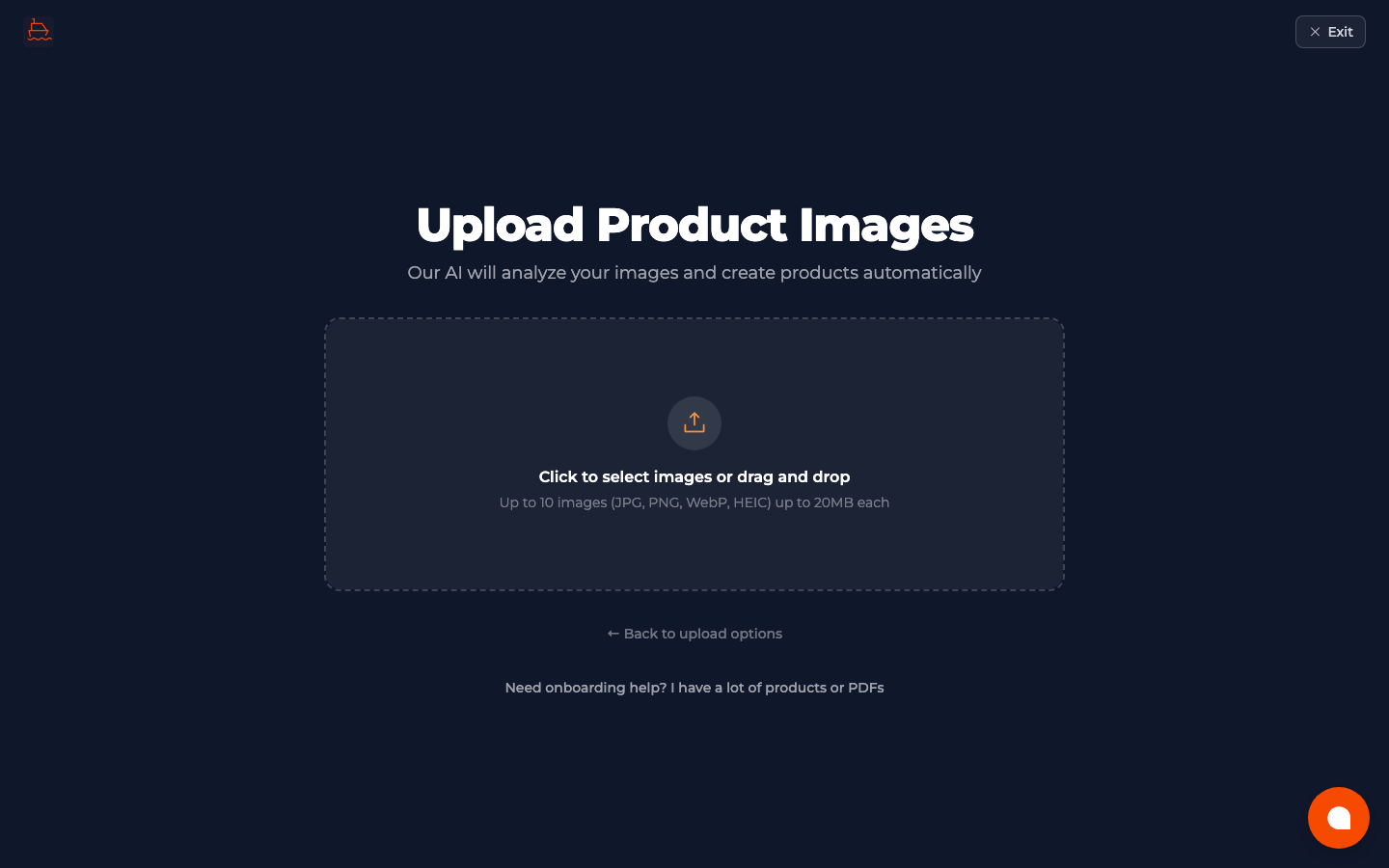
Upload and prepare product images
Add the product photos in one batch. AI assistance can suggest product details, while image-only mode keeps the PDF focused on the uploaded photography.
- 3
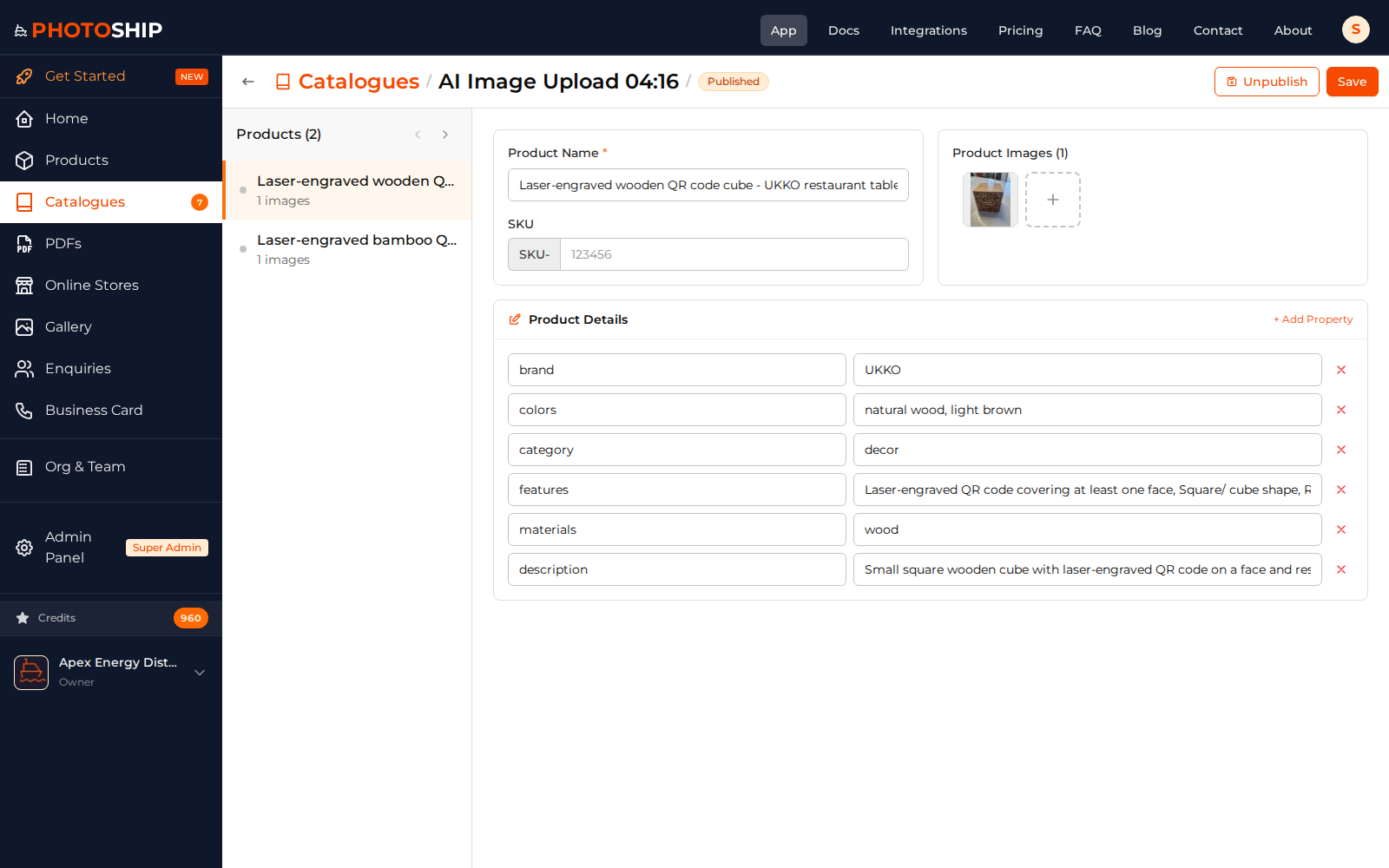
Review the product catalogue
Check each product and make any edits needed before designing the PDF. Accurate source data prevents repeated corrections in the generated pages.
- 4
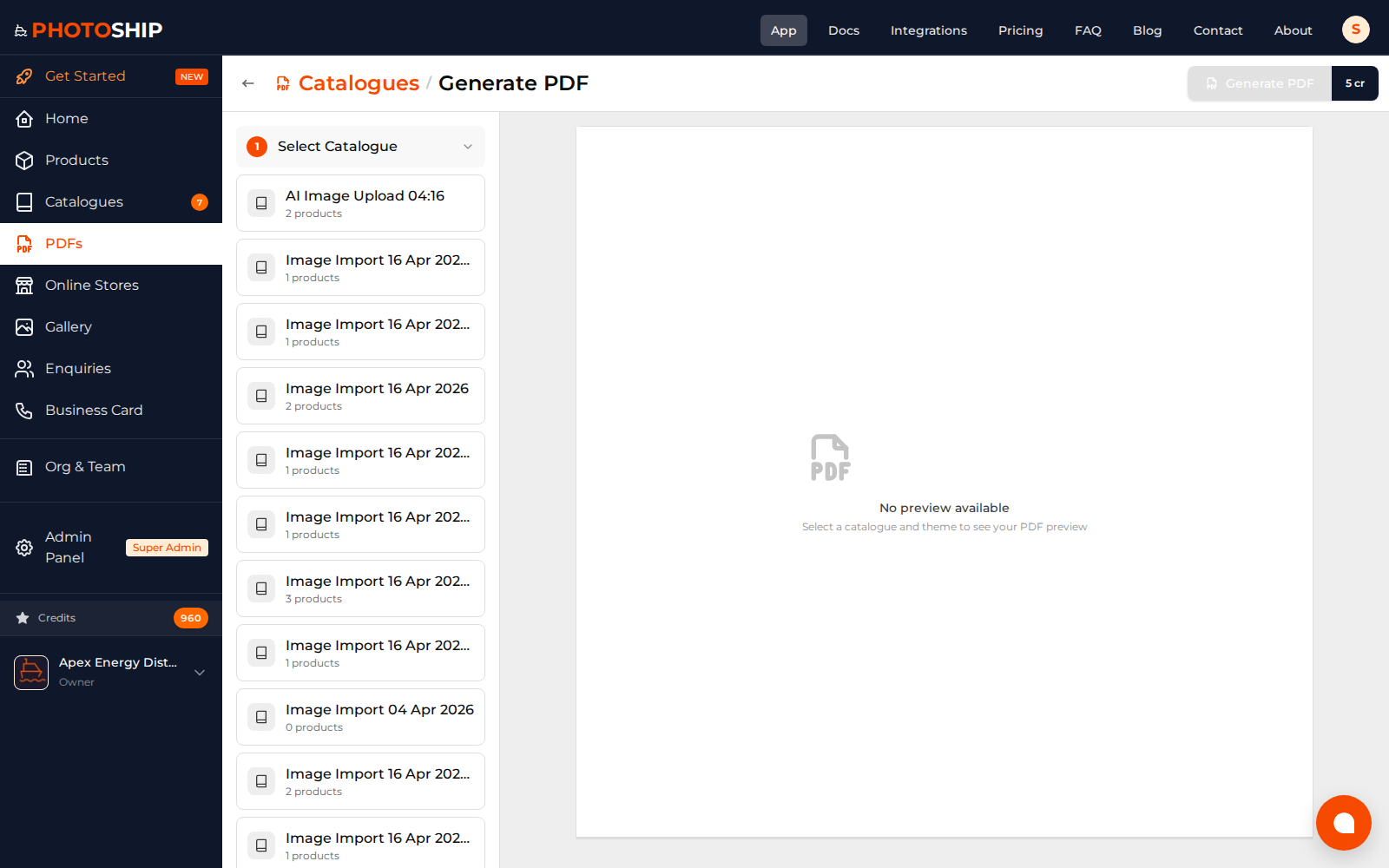
Choose the PDF design
Select a layout, theme, visible product fields, cover options, and contact details. Use the preview to confirm image cropping and page density.
- 5
Generate and download
Generate the final file, then open the PDFs page whenever you need to download it again or update its design.
Before you publish
- Use similarly oriented photos for a more consistent layout.
- Hide fields you do not need before generating the PDF.
- Preview long names and prices before downloading the final file.