


How to Publish a Product Catalogue as an Online Store
Reuse an existing Photoship catalogue as a live customer-facing store. Choose the catalogue, configure how buyers browse and enquire, and publish a shareable link without uploading the products again.
Watch the workflow
Open on YouTubeStep-by-step
- 1
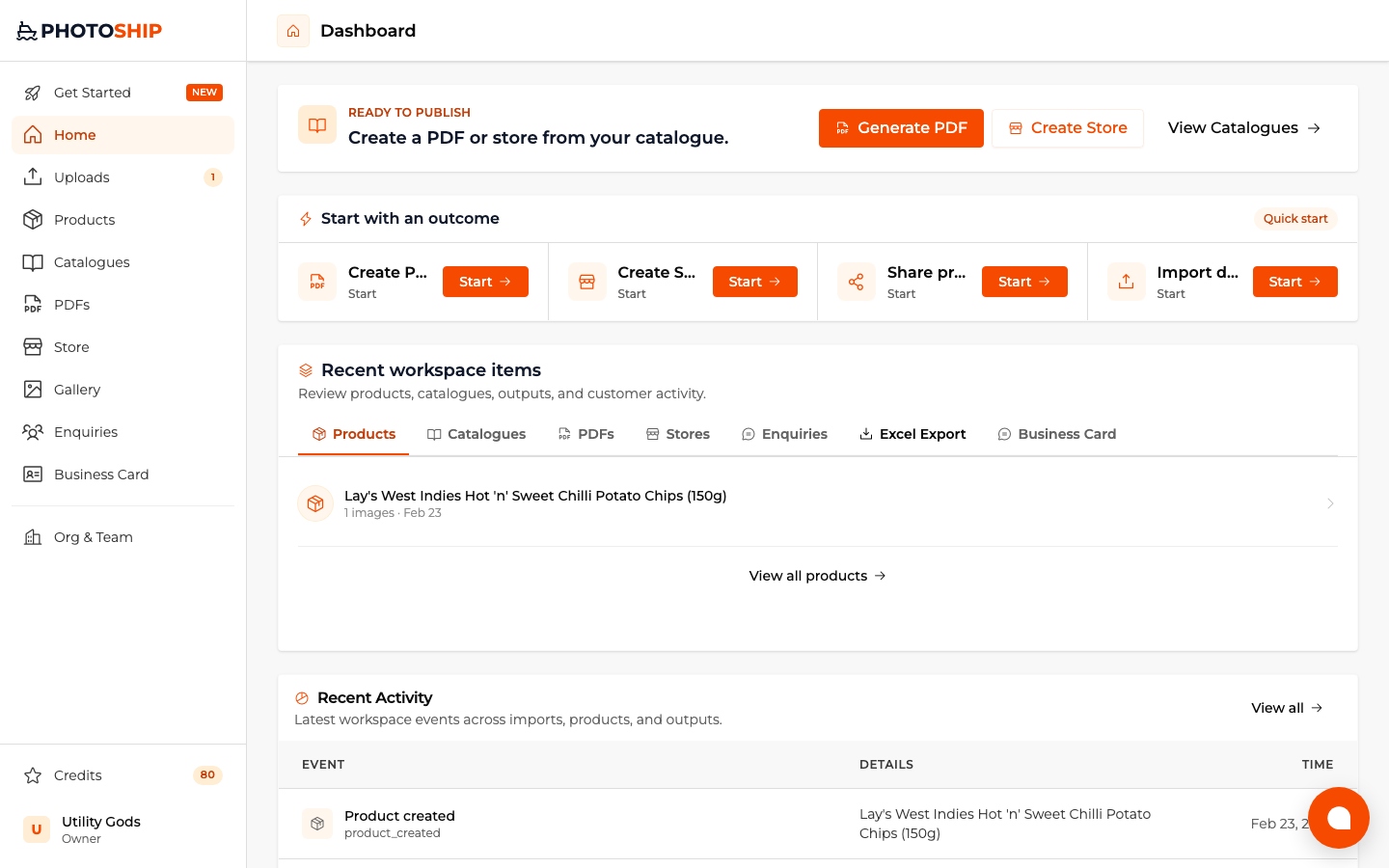
Choose Create Store
Start the store workflow and select an existing catalogue as the product source.
- 2
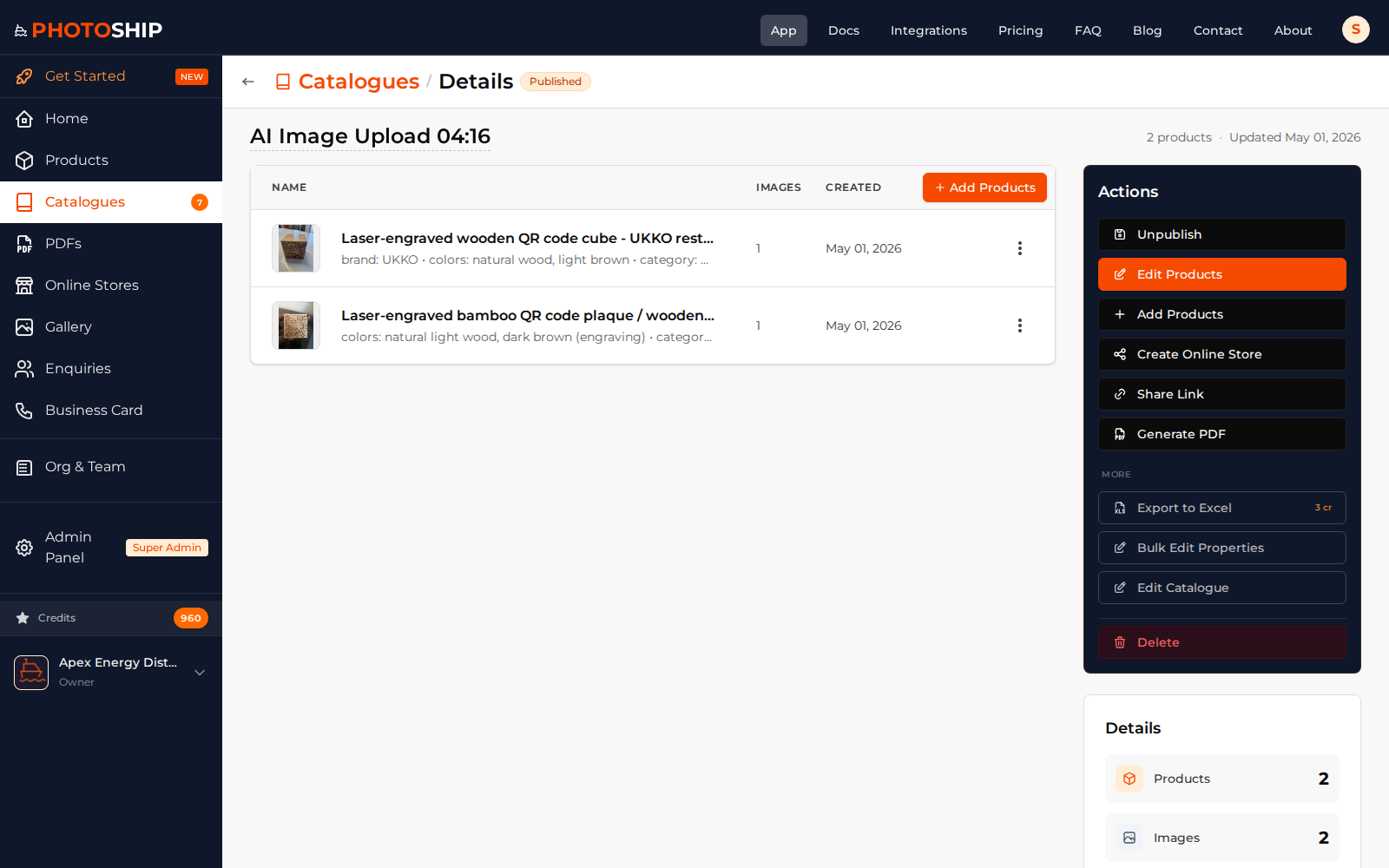
Confirm the catalogue
Review the catalogue products and make sure its images, prices, and descriptions are ready for customers.
- 3
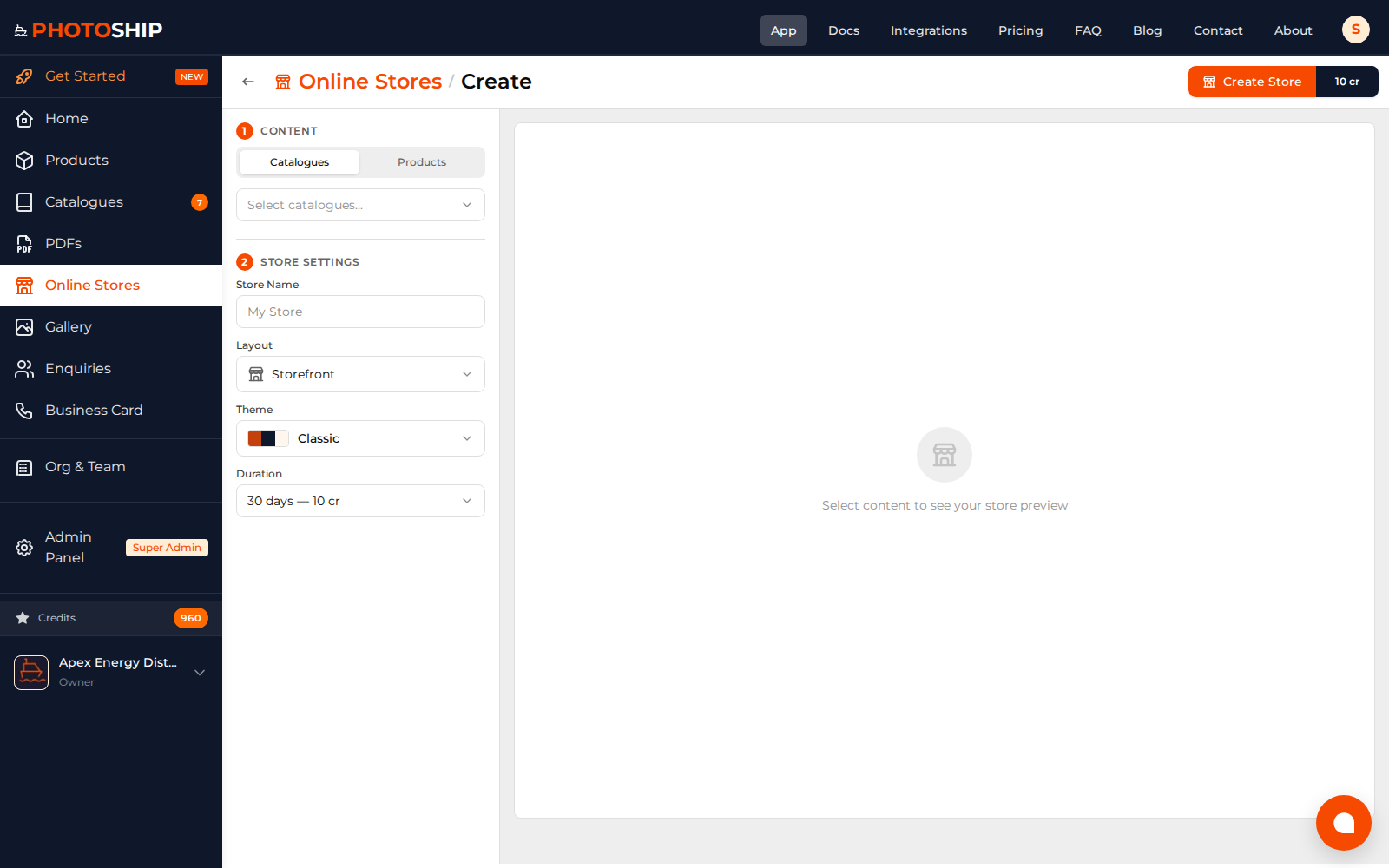
Configure the store
Choose a layout, theme, catalogue visibility, buyer actions, and business contact details. Add WhatsApp ordering when needed.
- 4
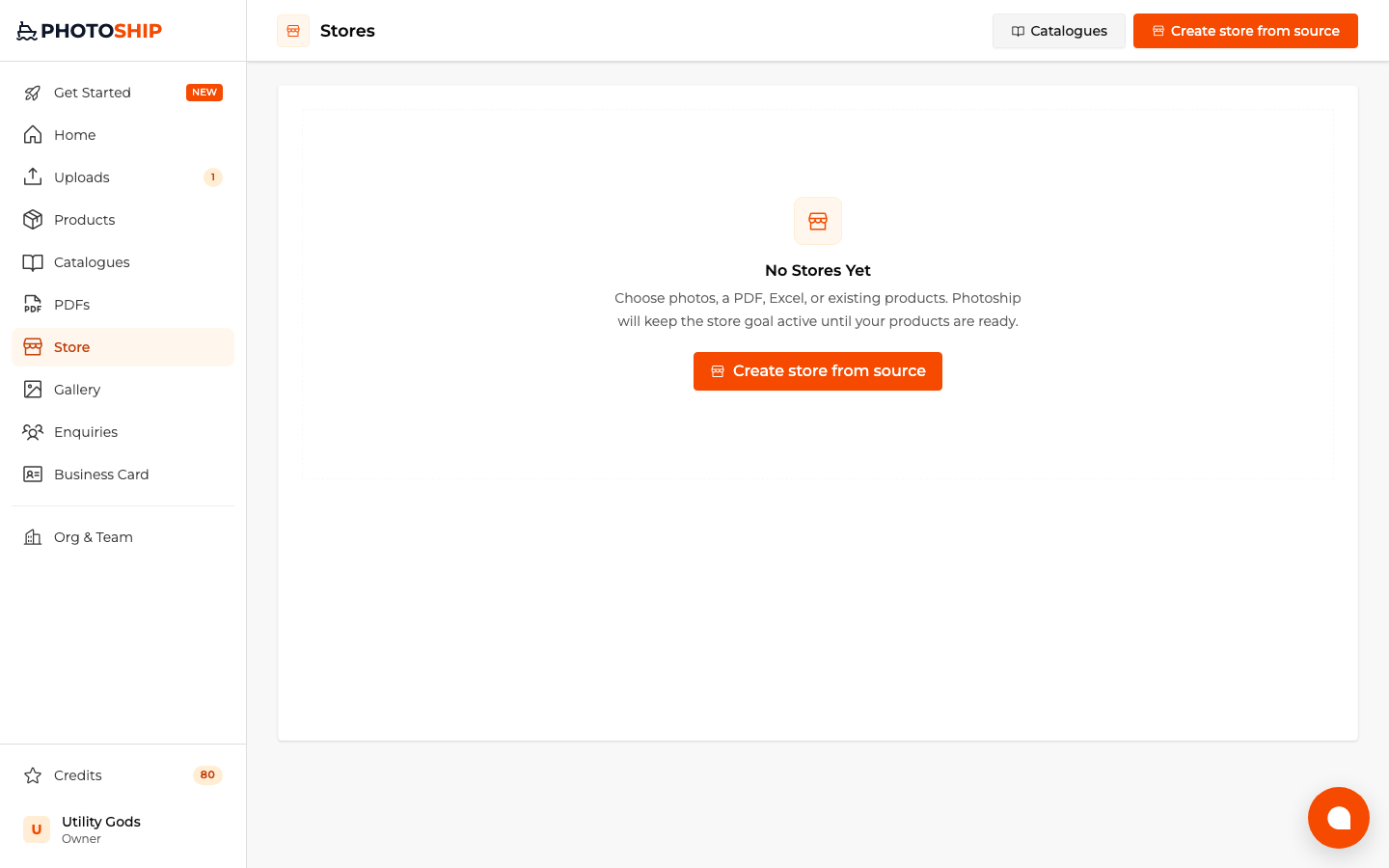
Publish and share
Publish the store, copy its public URL, and manage future settings from the store detail page.
Before you publish
- Keep the source catalogue focused on the intended customer.
- Preview the store on both phone and desktop.
- Product edits stay reflected in the live store, so update source data carefully.