


How to Import a Shopify CSV into a Product Catalogue
Reuse the product data you already maintain in Shopify. Export the Shopify product CSV, upload it to Photoship, review the mapped products and variants, and prepare a catalogue without copying product rows by hand.
Watch the workflow
Open on YouTubeStep-by-step
- 1
Export products from Shopify
Open Shopify product export, include the products you need, and download the CSV. Keep image URLs and variant rows in the export.

- 2
Upload the Shopify CSV
Choose Excel or CSV as the Photoship source and upload the export. Select your intended result first when the products are meant for a PDF or store.

- 3
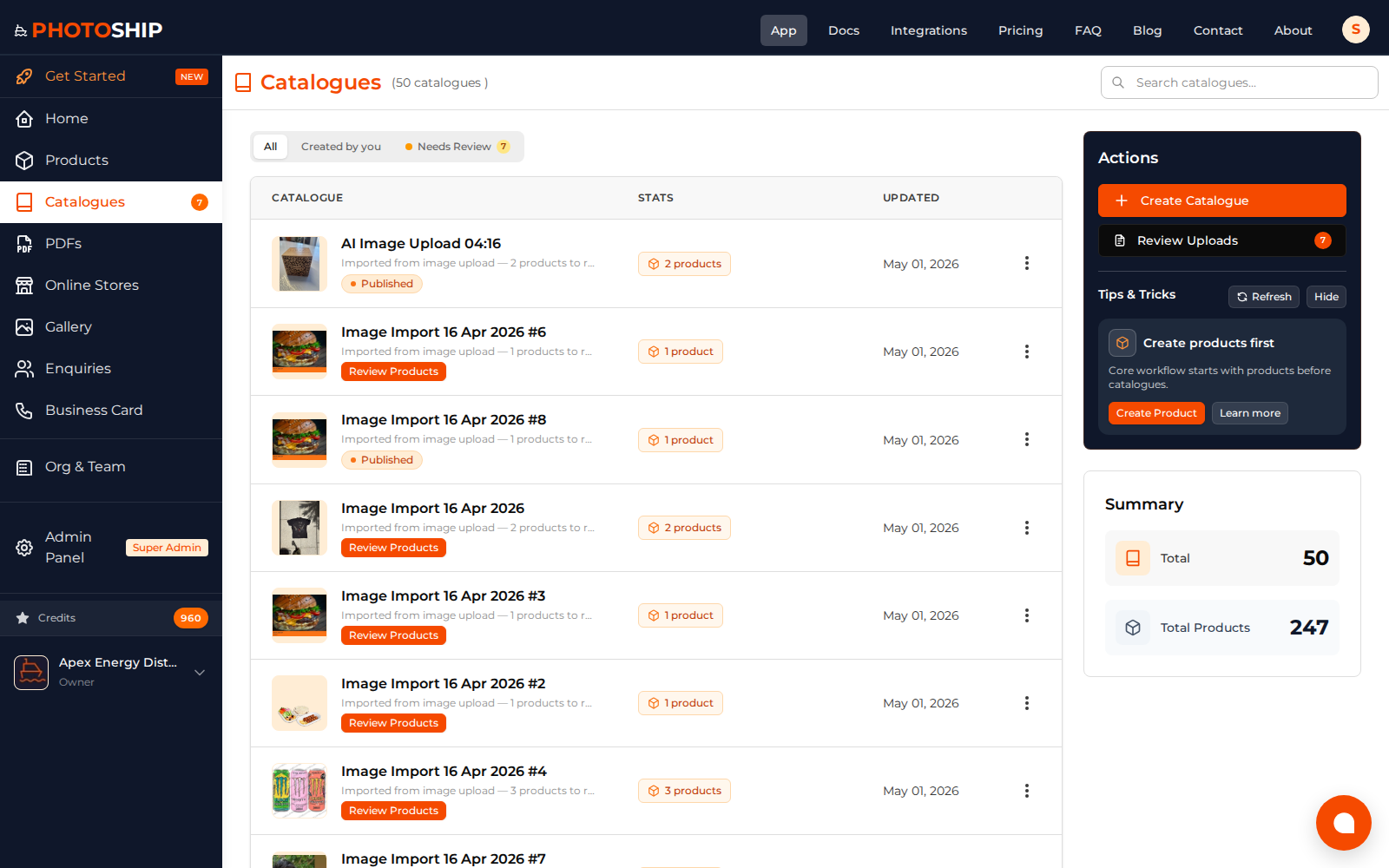
Review imported products
Check names, prices, handles, images, and variants after processing. Resolve any rows that need attention before using the catalogue.
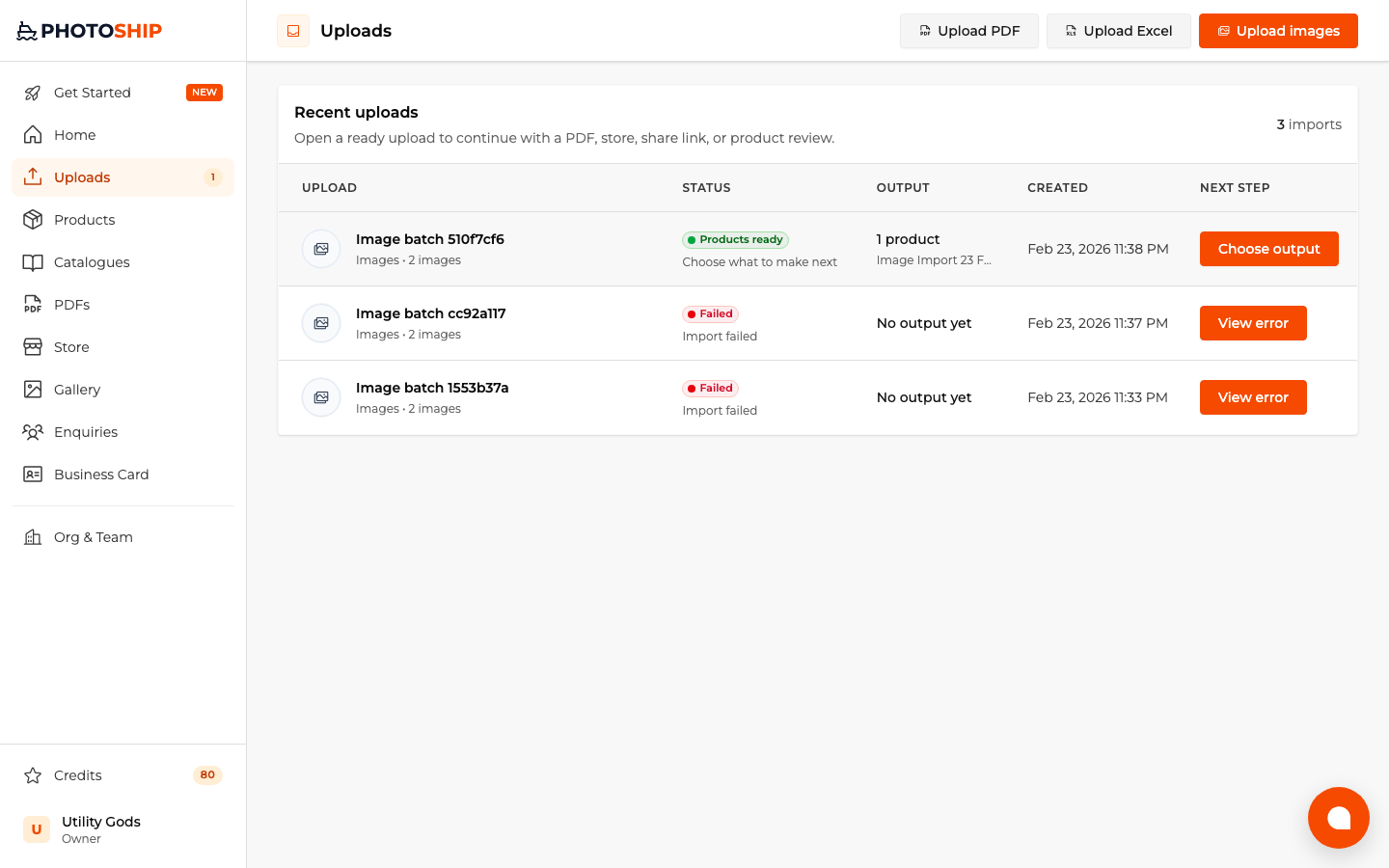
- 4
Continue to your chosen output
Use the prepared product catalogue to create a PDF, online store, or customer-facing share link without importing the Shopify file again.
Before you publish
- Export UTF-8 CSV from Shopify.
- Keep the Handle column so related variant rows stay grouped.
- Review currency and compare-at prices before publishing.